Room Controls
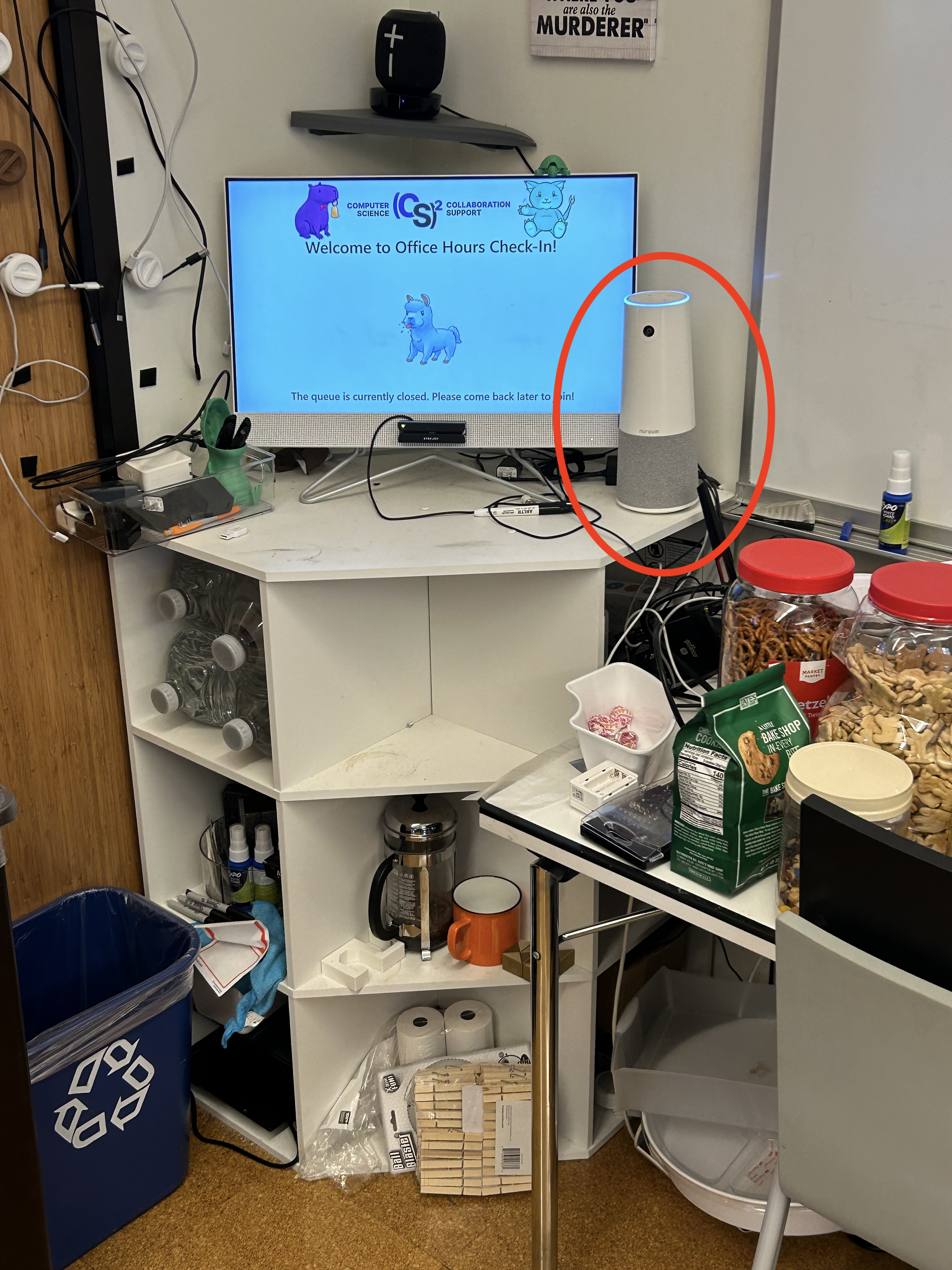
The projector and screens are primarily controlled with two phones. One is mounted to the wall between Drove and Exaltation, and the other is in a bin on the wooden table supporting Fluther and facing the projector. Pictures here.
Phone Controls
Below is an image of the buttons that should appear on the phone screens. If they do not, go to the relevant question in Troubleshooting. For all buttons on the phone screen, they function as a switch. For example, tapping the Start COURSE OH (gray) starts OH and turns the button into the Pause COURSE OH (blue) button.
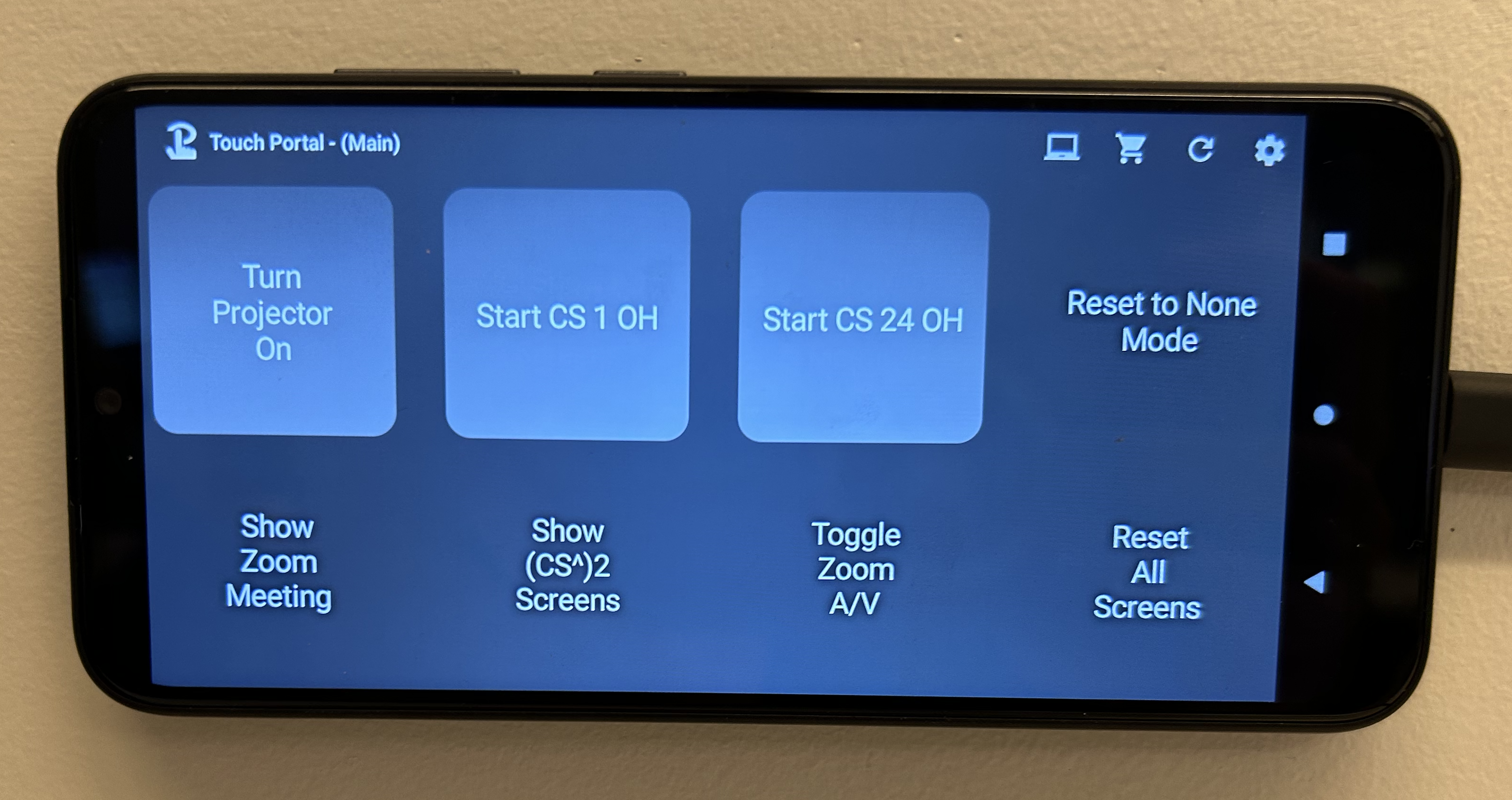
- Turn Projector On | Turn Projector Off: Turns the main projector on or off.
- Start
COURSEOH | PauseCOURSEOH: Enables or disables the queue forCOURSEoffice hours. Modifies both the check-in ipad (and behavior) and the information portrayed by the named monitors. See Hosting OH for a complete guide. - Reset to None Mode: Returns all named monitors to the default screen (listing the current \((CS)^2\) events).
- Show Zoom Meeting: Changes the main projector screen to show the Zoom meeting. Also turns on the Zoom meeting if it is not currently active.
- Show \((CS)^2\) Screens: Changes the main projector screen to match with the named monitor screens.
- Toggle Zoom A/V: Toggles the audio and video for the Zoom meeting on the main projector. Uses the camera placed next to the check-in ipad.
UPDATE THE PICTURE BELOW TO INCLUDE THE IPAD
Phone Locations
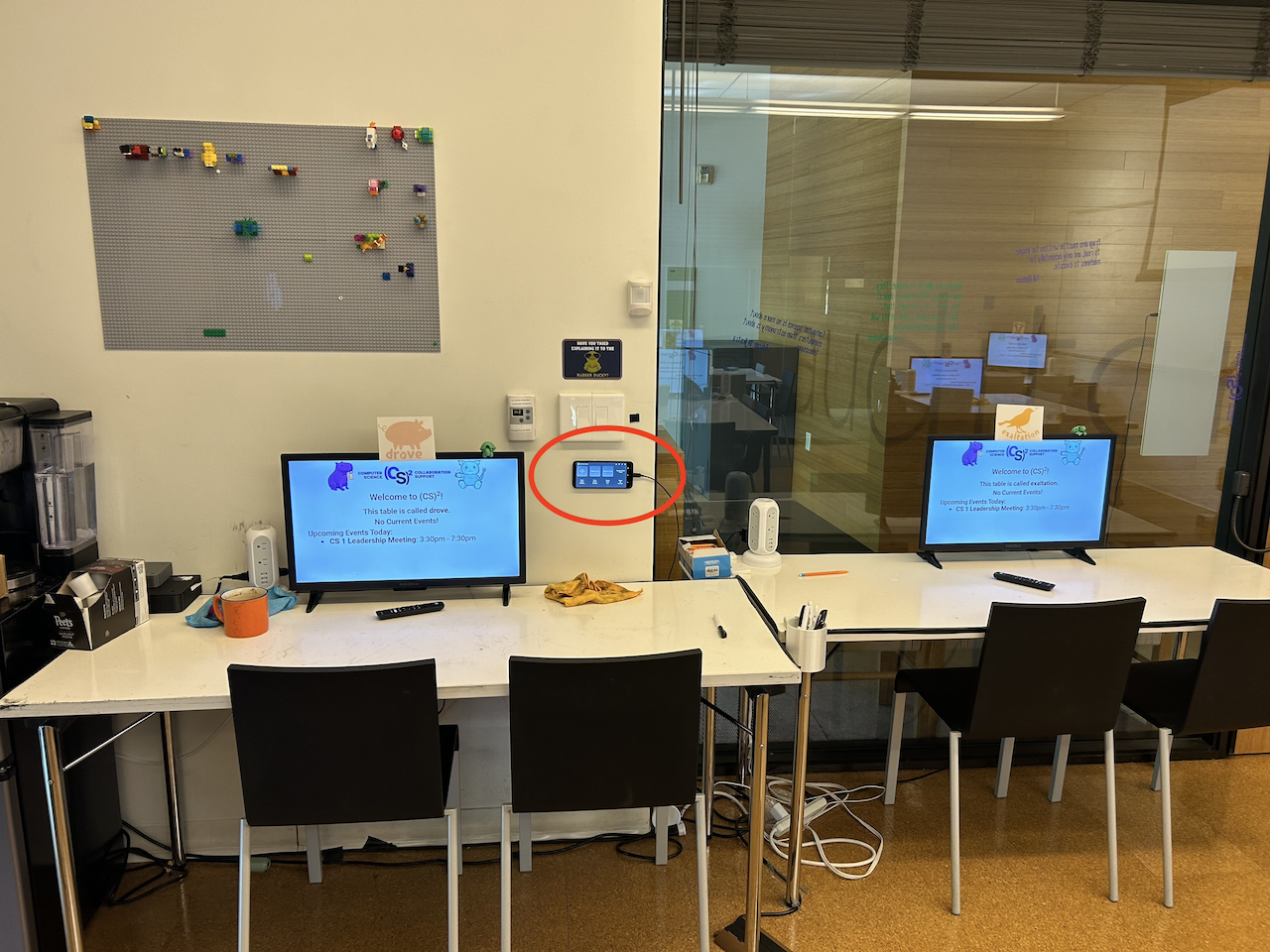
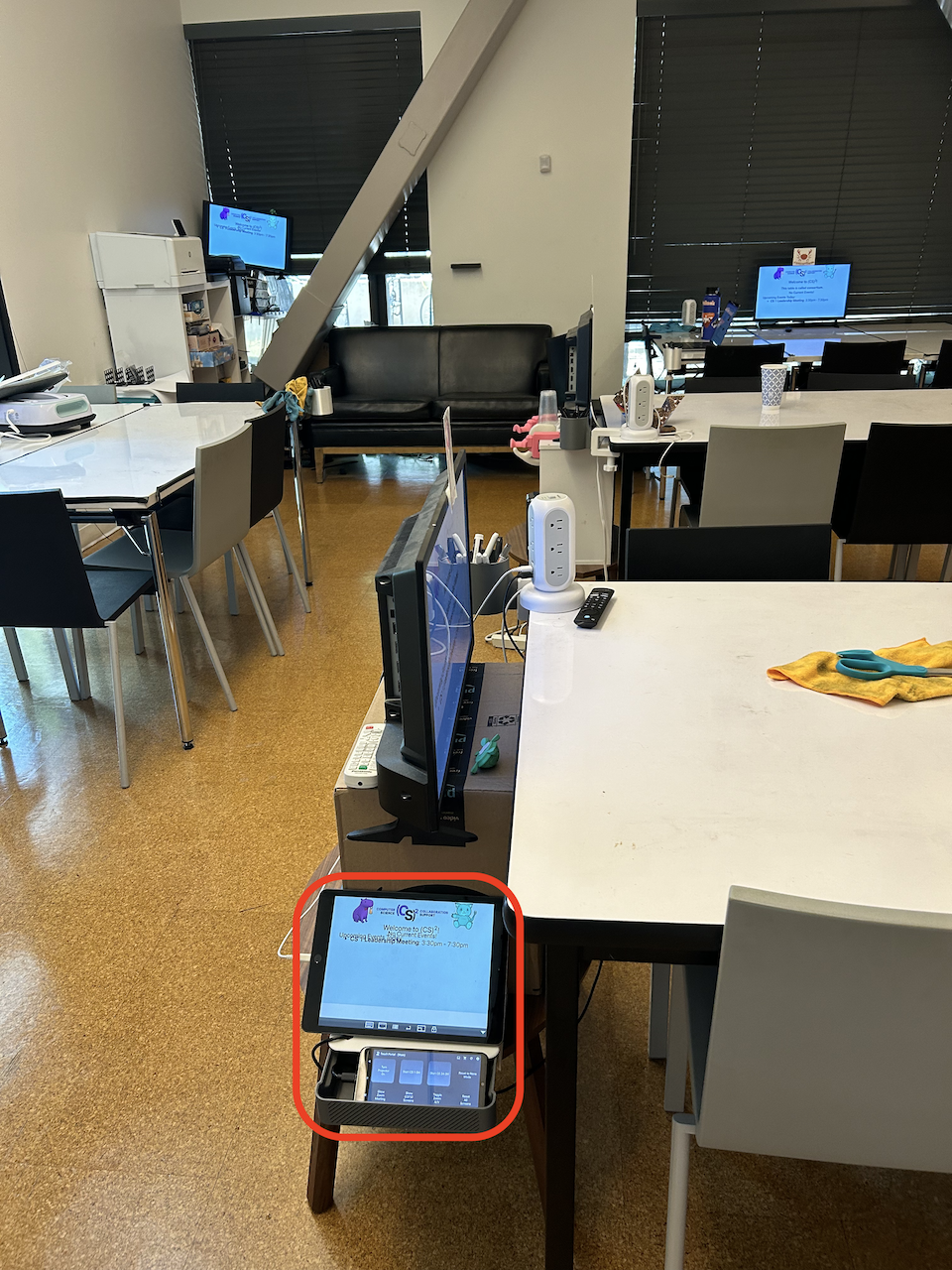
The circled iPad is mirroring the currently active projector screen.